A clearer workflow diagram in the guidance pages
The workflow diagram in the guidance pages is framed at the same zoom as the Traffic Map, so a short workflow is no longer blown up to fill the frame and read out of proportion.
The whole project on one screen — and exactly where work is stuck. — 11 shipped features below.
The workflow diagram in the guidance pages is framed at the same zoom as the Traffic Map, so a short workflow is no longer blown up to fill the frame and read out of proportion.
The same map now sits on the Document Log as well, and clicking any stage circle narrows the list to the documents held at that stage; click it again to go back to everything. Seeing where work has piled up and getting to the actual documents is one click, not two screens.
Drag a card's bottom edge to fix its height; anything taller scrolls inside the card. Double-click or press Delete to go back to the natural height. The height is remembered per card group, and survives reordering the cards or changing their width.
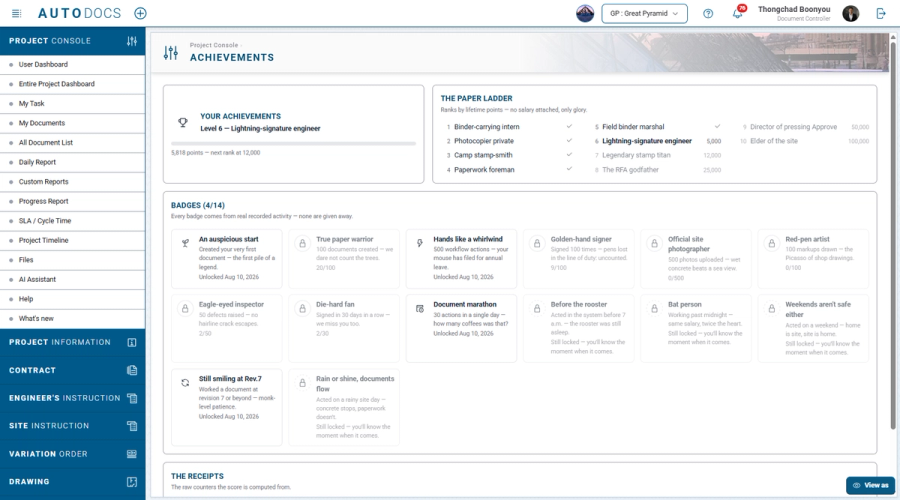
Points accumulate from real work across every project, climbing a ten-step ladder, with fourteen badges in Thai construction-site humour such as "Before the rooster" and "Documents through the rain". Past work is counted retroactively from the day you started. See them on a dashboard card, your own achievements page, and a level chip in the project directory; colleagues' achievements are visible, but there is no leaderboard.
Drag its right edge to narrow or widen it; the cards repack between three, two and one columns, and the chosen width is remembered.
Switch between showing the last 3 and the last 7 days.
Users can arrange the information cards on the home page to suit their work. The dashboard presents documents awaiting action, a contractor overview, and a daily summary of document status generated by the AI assistant, in both Thai and English.
Beyond choosing which cards to show, users can now drag them into the arrangement they prefer.
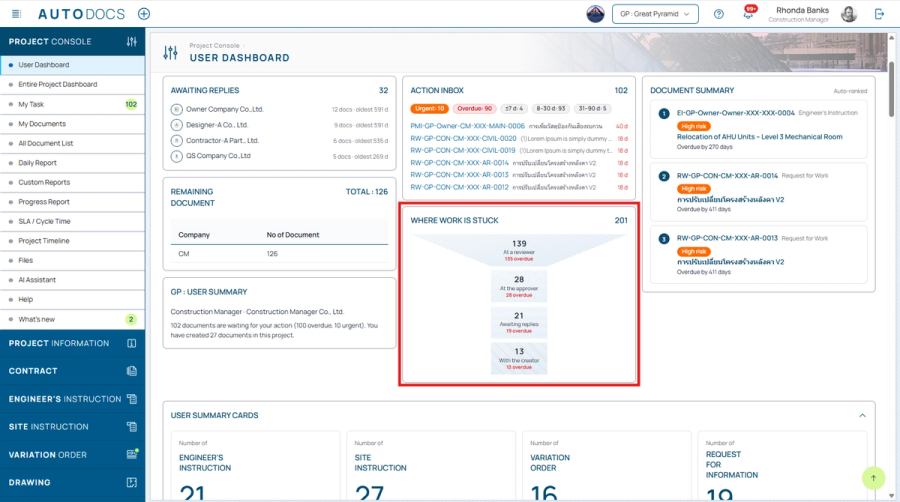
A four-stage funnel showing how many documents are currently sitting with their creator, with a reviewer, waiting on replies from other parties, or with the approver, with the overdue count for each stage in red.
Type to filter the cards and document lists on the dashboard as you go, with a toggle for the filtered view.
A project overview dashboard with a map, and an Issued Certificate page showing the parties and the order of signatories.